A hot laptop needs cooler air and less work to do. That is the whole fix in one sentence. Here is how to get there fast.
Do this right now:
- Move your laptop off the bed, couch, or your lap and onto a hard, flat surface like a desk or table.
- Check that the air vents on the bottom or sides are not blocked by dust, papers, or fabric.
- Close any heavy programs you are not using, like games, video editors, or too many browser tabs.
- Switch your power mode to Balanced or Power Saver instead of Best Performance.
These four steps cool most laptops down within a few minutes. But a quick fix does not always solve the real problem. Below, we will walk through exactly why your laptop is overheating and how to fix each cause for good.
Is Your Laptop Actually Overheating? (The Numbers)
Most laptops run far hotter than people expect, and that is normal. Here is what the numbers actually mean.
When your laptop is idle or doing light tasks like browsing or email, a normal CPU temperature sits around 30 to 40°C. Once you start gaming, editing video, or running something demanding, it is normal for that number to climb to 70 to 80°C. This is not a problem. It is just the processor working hard.
The number to watch is 90°C and up under sustained use. That is when your laptop is pushing close to its real limit.
According to Intel, most modern processors have a maximum safe temperature, called TjMax, somewhere between 100°C and 110°C. Your laptop is not designed to cross that line. Built-in safeguards kick in first: the processor slows itself down to cool off, and if that is not enough, it shuts down completely. This protects the hardware from permanent damage.
So if your laptop gets hot and then shuts off, that is often the safety system doing its job, not a sign it is broken. The real question is not “is my laptop hot,” but “is it hitting 90°C or higher during normal use, or shutting down often.” If so, keep reading, because that points to a fixable cause.
You can check your exact processor’s limits on Intel’s official support site.
The 1-Minute Fixes
Before you touch a single setting or open your laptop, fix the easy stuff first. Most overheating problems come from something simple blocking the air, not a hardware failure.
Check where the air comes in.
Almost every laptop pulls cool air in through vents on the bottom and pushes hot air out the side or back. If those bottom vents are sitting flat on a bed, a couch cushion, or your lap, they cannot pull in air. The laptop ends up trapping its own heat with nowhere for it to go.
Move to a hard, flat surface.
A desk, table, or any solid surface lets air flow freely under the laptop. This alone can drop temperatures noticeably within minutes, especially if you were using it on soft furniture before.
Give it some lift.
Raising the back of the laptop even slightly increases the gap between the vents and the surface below. You can prop it on a book, a laptop stand, or anything that tilts it up a bit. More space under the vents means more air can get pulled in.
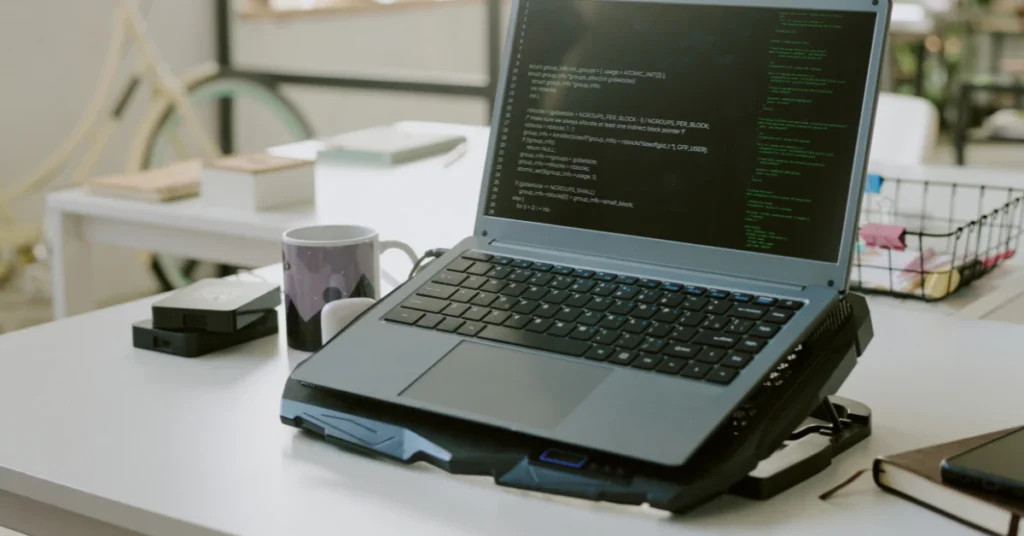
Use a cooling pad for long sessions.
If you game, edit video, or do other heavy tasks for long stretches, a cooling pad helps pull extra heat away from the bottom of the laptop. It will not fix a laptop that is already struggling for other reasons, but it genuinely helps during sustained heavy use.
None of this requires a screwdriver or any technical skill. It is just about giving your laptop the open airflow it was designed to use. If your laptop is still running hot after this, the cause is likely inside, either dust buildup, background software, or power settings, which we will cover next.
Cleaning the Fans (Safely)
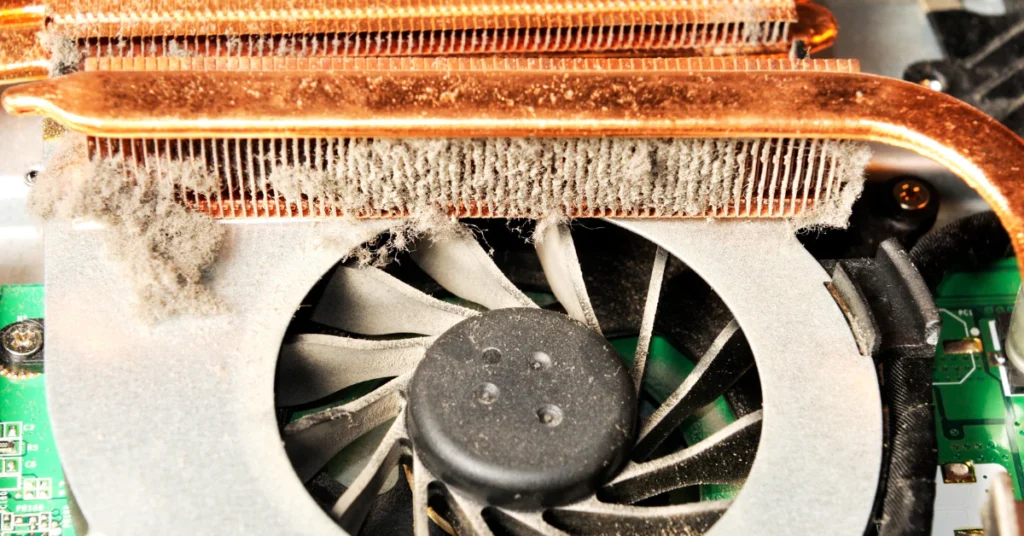
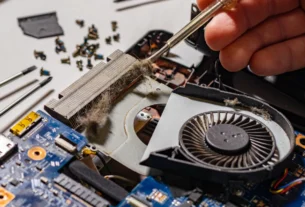
Dust is the most common reason laptops overheat. Over time, it builds up inside the vents and on the fan blades, blocking airflow and trapping heat right where your processor needs it to escape. Cleaning it out is often the single biggest fix you can make.
Here is how to do it safely with a can of compressed air.
What you need:
- A can of compressed air
- A toothpick or a small plastic spudger
Steps:
- Shut down your laptop and unplug it completely.
- Find the air vents, usually on the bottom or sides of the laptop.
- Hold the compressed air can completely upright. Do not tilt it.
- Before you spray, gently hold the fan blades still with the toothpick through the vent opening.
- Spray short bursts of air into the vents while keeping the blades held still.
- Repeat on all vent openings, then let the laptop sit for a minute before turning it back on.
Two safety warnings matter here, and skipping them can cause real damage.
Do not let the fan spin freely while you spray it. A burst of compressed air can spin the fan blades much faster than they are built to go. When that happens, the fan can act like a small generator and send a reverse electrical charge back into the motherboard. Holding the blades still with a toothpick stops this from happening.
Always keep the can upright. Tilting or turning the can sideways can cause it to release a cold liquid instead of air. That liquid can land on internal components and cause damage.
This is a simple five-minute job, but doing it the wrong way can create a new problem instead of fixing the old one. Done carefully, it is one of the safest and most effective fixes on this list.
Windows Settings to Cool Things Down
Your power mode controls how hard your processor is allowed to work. The higher the performance setting, the more heat it produces. Dropping it down is one of the fastest software fixes for an overheating laptop, and it takes less than a minute.
The steps are different depending on whether you use Windows 11 or Windows 10.
On Windows 11:
- Open Settings.
- Go to System, then Power & battery.
- Find the Power mode option.
- Select Balanced or Best Power Efficiency instead of Best Performance.
This setting applies right away. You do not need to restart your laptop.
On Windows 10:
- Click the battery icon in the taskbar, if your laptop has one.
- Use the slider to move away from Best Performance and toward Better Battery or Battery Saver.
- If your laptop does not show this slider, open the Control Panel instead and go to Power Options.
- Choose Balanced or Power Saver from the list of plans.
Either way, you are telling your laptop to stop pushing the processor as hard as it can. Best Performance mode lets the CPU run at full speed constantly, which generates more heat, especially during everyday tasks like browsing or typing that do not need that much power.
Balanced mode is a good middle ground for most people. It still gives you solid performance but holds back on power use when your laptop does not need to be running flat out. If you are dealing with overheating and do not need maximum speed, this single setting change can make a real difference.
Brand-Specific Fixes: HP vs. Asus
Many laptop brands include their own built-in software for managing heat. These tools only work on their matching brand, so check which one applies to your machine before trying it.
If you have an HP laptop:
HP laptops often come with HP CoolSense, a feature built to automatically adjust fan speed and system performance based on how you are using the laptop and where it is placed. It works in the background without much input from you.
Many HP models also include HP Command Center, which gives you more direct control. Inside it, you can switch between thermal profiles to manage how the system balances performance and heat. Choosing a cooler or quieter profile can help bring temperatures down during everyday use.
If you have an Asus laptop:
Asus laptops, especially gaming models, typically include Armoury Crate. This software lets you adjust fan profiles directly, so you can choose a setting that prioritizes cooling over raw performance. Turning up the fan curve manually can help during heavy use, even if it means a bit more fan noise.
One important note:
These tools are brand-specific. HP CoolSense and Command Center will not appear on an Asus laptop, and Armoury Crate will not appear on an HP laptop. If you are not sure whether your laptop has one of these tools, check the brand’s official support site or search your Start menu for the program name. Using the wrong guide for your brand will not help, since the software simply is not there to adjust.
Why is it Overheating When Charging, Idle, or Gaming?
Overheating does not always look the same. Depending on when it happens, the cause can be very different. Here is how to read the situation.
When it overheats while charging or just sitting idle
This one surprises a lot of people, but there is a real reason behind it. Some laptops automatically switch from a lighter integrated graphics chip to a more powerful discrete graphics chip whenever they are plugged into power, even if you are just browsing or typing. That switch alone can raise the temperature, even with nothing demanding running.
On top of that, charging itself adds extra work. Your laptop is running its normal tasks and recharging the battery at the same time, and both of those processes create heat. This is part of why a laptop plugged in often runs warmer than the same laptop on battery power.
When it overheats while gaming
This is usually more straightforward. Games push your processor and graphics chip to their limits for long stretches, so higher heat is expected. If temperatures feel too high during gaming, close any other background programs you are not using, since every extra app adds more load on top of what the game already needs.
When it shuts down randomly
A shutdown feels alarming, but it does not always mean overheating. Hardware failure, battery problems, and heat can all cause the same symptom.
Here is a simple way to tell the difference. Restart your laptop and go into the BIOS screen instead of letting it load Windows. BIOS uses very little processing power, so it barely creates any heat.
If your laptop still shuts down while sitting in BIOS, heat is probably not the cause. That points more toward a hardware or battery issue that likely needs professional repair. If it stays on fine in BIOS but shuts down once Windows loads and you start using it, heat under load is the more likely cause, and the fixes earlier in this guide should help.
The Advanced Fix: Thermal Paste Replacement
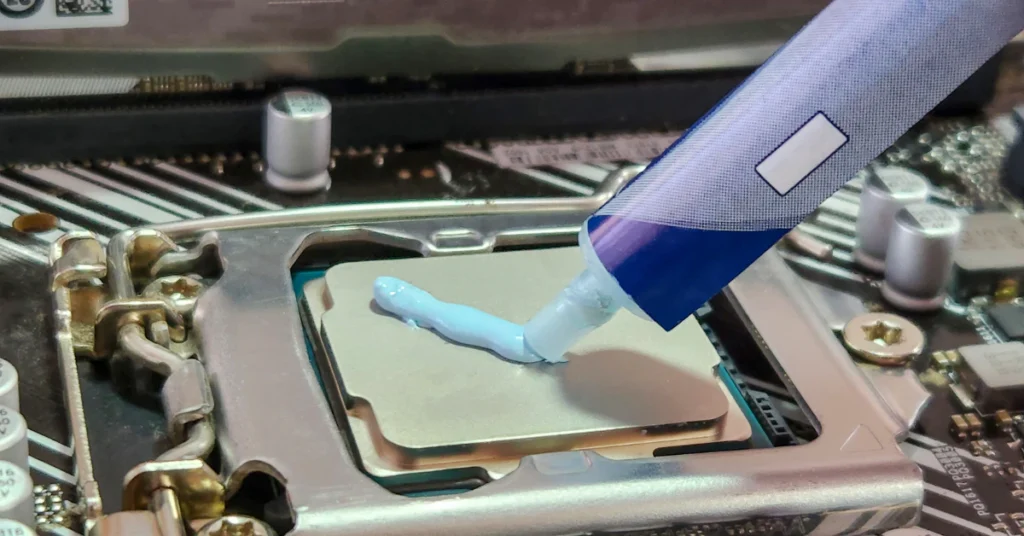
If your laptop is clean, sitting on a hard surface, and running cooler power settings, but it is still overheating, the problem might be inside, in the thermal paste.
Thermal paste sits between the processor and the heat sink, helping move heat away from the chip. Over time, especially in laptops, it dries out and stops working as well. This usually happens around the 2 to 4 year mark, faster than in desktop computers, because laptops run hotter and go through more heating and cooling cycles.
If your laptop is a few years old and every other fix on this list has not helped, old thermal paste is a likely cause.
Before you consider this fix, one warning matters a lot. Opening your laptop to access the heat sink and replace the thermal paste will likely void your manufacturer’s warranty. If your laptop is still under warranty, contact the manufacturer first instead of opening it yourself.
If it is out of warranty and you are not comfortable opening a laptop, this is a job worth handing to a professional repair technician rather than attempting it yourself.
FAQ
How do I make my laptop stop overheating?
Clean out the dust from the vents, set it on a hard flat surface instead of a bed or your lap, close any heavy programs you are not using, and switch your power mode to Balanced. These four steps fix most overheating issues.
Can an overheated laptop be fixed?
Yes, in almost all cases. Laptops have built-in protections that slow the processor down or shut it off before real damage happens. Once you find and fix the cause, whether that is dust, power settings, or old thermal paste, the overheating usually stops.
Why do laptops overheat so easily?
Laptops pack their parts into a much smaller space than desktop computers, with far less room for air to move. This makes them run hotter by design, so it does not take much, like a little dust or a blocked vent, to push the temperature up.
Why is my laptop overheating even though nothing is running?
This often happens because the laptop switches to a more powerful graphics chip when it is plugged into power, even for simple tasks. A hidden background process or blocked vents can also cause this.
Should I worry if my laptop is hot?
Warm during gaming or charging is normal. Worry if it is painful to touch, the fan runs at full speed during light tasks, or it shuts down on its own.
Is 92 degrees hot for a CPU laptop?
It is getting close to the point where most processors start to throttle, which happens near 95 to 100°C. It is not an emergency, but it is a sign to improve cooling soon.
Does overheating damage a laptop?
Direct damage is rare because of built-in safety features. But repeated high heat over time wears down the battery, fan, and thermal paste faster.
How can I cool down my laptop?
Clean the vents, raise it off soft surfaces, close heavy programs, and use a cooling pad during long sessions of gaming or other demanding work.
Conclusion
Overheating almost always comes down to a few simple causes: blocked airflow, dust, heavy power settings, or aging thermal paste. Start with the easy fixes, a hard surface, clean vents, and a lower power mode, and most laptops cool down fast. If the heat keeps coming back, work through the deeper fixes in this guide one at a time. Your laptop is built with safeguards to protect itself, so a few extra minutes of maintenance now can save you from bigger problems later.