To stop laptop fan noise fast: set your laptop on a hard, flat surface instead of a bed or cushion, switch your Windows 11 Power Mode to Balanced or Best Power Efficiency (go to Settings, then System, then Power & Battery, then Power Mode), close any heavy apps running in Task Manager, and turn on your laptop’s Quiet thermal setting if it has one. These four steps take about a minute and often cut the noise right away.
One quick warning first. You can’t safely turn your laptop’s fan off completely. The fan’s job is to pull heat away from the processor, so stopping it risks serious overheating. The real goal is cooling your laptop down so the fan has less work to do and quiets down on its own.
Most loud fans trace back to one of five things: dust buildup, a soft surface blocking airflow, too many background apps, outdated drivers, or a faulty thermal sensor. Find your match below.
Is Your Laptop Fan Actually Too Loud? How to Diagnose the Sound
Before you touch a single setting, figure out whether the noise is even a problem. Not every loud fan means trouble.
Check the volume with your phone. Download a free decibel meter app and hold your phone near the laptop while you do light tasks like browsing or typing. According to PCWorld’s own testing, a healthy laptop fan under light use usually reads between 30 and 45 decibels. This is a practical benchmark from PCWorld’s reporting, not an official spec from any laptop maker, but it gives you a useful target. If your fan reads well above that range during simple tasks, something is pushing it harder than it should work.
Don’t panic about the blast at startup. If your laptop fan roars the moment you press the power button, that’s usually normal. Many laptops run the fan at full speed for a few seconds when you turn them on. This is a quick self-test to confirm the fan motor still works, sometimes called a POST check (short for Power-On Self-Test). Users across tech forums consistently report this same pattern, and it should settle down within a few seconds. If it doesn’t quiet down and keeps roaring well into your session, that’s a different issue to look into.
Now, listen closely to the type of sound:
- A smooth whir or whoosh means the fan is just responding to heat. This is normal.
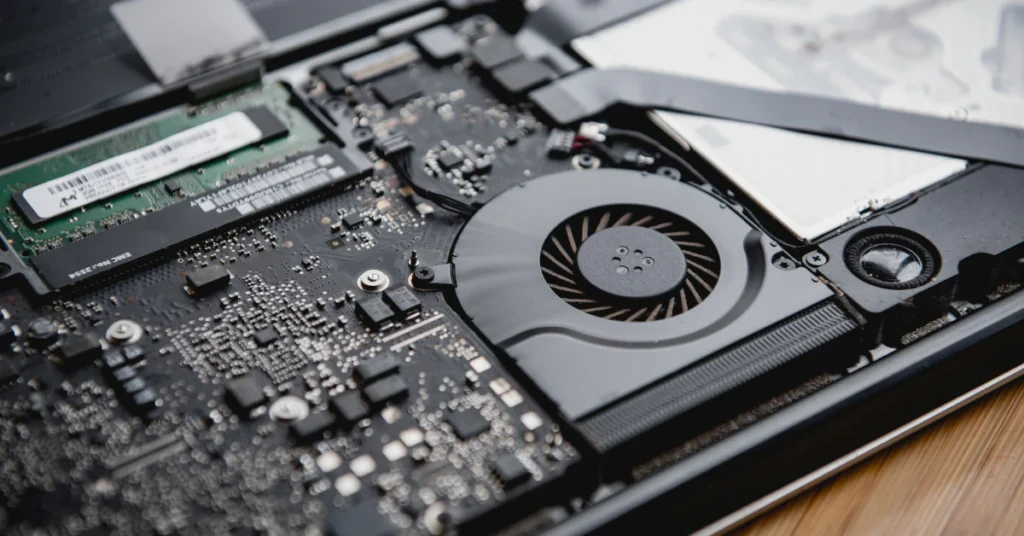
- Grinding, rattling, or buzzing is a red flag. HP’s own support team says this almost always points to worn-out fan bearings that need replacing. It can also mean a loose internal wire is brushing against the spinning blades, which some laptop owners have found and fixed themselves after opening the case.
- A high-pitched whine or sharp clicking might not be the fan at all. Clicking can come from a failing hard drive. You can check your drive’s health using a free SMART status tool like CrystalDiskInfo, which flags a drive as “Bad” or “Caution” if it’s at risk.
Fast Software Fixes in Windows 11 (Do These First)

These three steps take about two minutes combined and don’t require opening your laptop or installing anything.
Lower your Windows 11 Power Mode.
Go to Settings, then System, then Power & Battery, then Power Mode. You’ll see three choices: Best Power Efficiency, Balanced, and Best Performance. If you’re on Best Performance, your CPU runs at higher voltage and generates more heat, which keeps the fan spinning faster and louder. Dropping down to Balanced, or Best Power Efficiency if you don’t need top speed, cuts that heat immediately and lets the fan relax.
Shut down background apps that are secretly working hard.
Press Ctrl + Shift + Esc to open Task Manager. Click the CPU column to sort apps by how much processing power they’re using. You’ll often find a browser with too many tabs open, an updater running in the background, or a game launcher you forgot was still active. Right-click anything you don’t need and select End Task.
Check if your laptop is actually running hot.
Fans speed up because of heat, not because they feel like it. HP’s own guidelines say a well-ventilated laptop should stay below 50°C (122°F) when idle and under 85°C (185°F) during heavy use. You can check your temperature using free tools like HWMonitor or Core Temp.
If your laptop is sitting below 50°C at idle and the fan is still loud, the power and background app fixes above may not be the real issue. In that case, move on to your laptop’s brand-specific thermal software, covered next.
How to Turn On “Quiet Mode” on HP, Dell, and Other Laptops
If your power settings and background apps are already in good shape, the next place to look is your laptop maker’s own companion software. Most big brands build in a quiet thermal setting that competitors’ guides rarely explain step by step.
| Brand | App | Where to Find Quiet Mode |
| Dell | Dell Power Manager (DPM 3.0) | Thermal Management > Quiet |
| HP | HP Command Center (or HP CoolSense on older models) | Thermal Profile tab > Quiet |
| Lenovo | Lenovo Vantage | Thermal/performance mode presets |
| Asus | Armoury Crate | Thermal/performance mode presets |
How to Stop Laptop Fan Noise on Dell
If you’re searching for how to stop laptop fan noise on Dell, or your Dell laptop just won’t quiet down, check for Dell Power Manager first. Many Dell laptops, including Inspiron, XPS, and Latitude models, come with it preinstalled.
Open Dell Power Manager and click Thermal Management in the left panel. You’ll see a Quiet option among the thermal settings. Selecting it tells your laptop to throttle back both the processor speed and fan speed together, which is often the fastest way to stop a Dell laptop from making noise without digging through other settings.
How to Stop Laptop Fan Noise on HP
For HP owners, the built-in tool is HP Command Center on newer models, or HP CoolSense on some older ones. Open it and look for the Thermal Profile tab, then select Quiet mode. This lowers fan speed and processor performance together, similar to Dell’s approach.
Don’t panic if it resets. Some HP laptop owners have reported, through HP’s own support community, that the Quiet setting in HP Command Center doesn’t always save. It can quietly switch back to the default profile after you restart the laptop or even just close the app. If this happens to you, it’s a known issue others have run into too, not something you broke. You may just need to reopen the app and reselect Quiet each time until HP issues a fix.
Run HP’s built-in fan check. If Quiet mode doesn’t help, or you suspect the fan itself might be failing, HP laptops have a diagnostic tool built in. Restart your laptop, and as it boots, press Esc, then F2, to open HP PC Hardware Diagnostics. From there, run the System Extensive Test or the Fan Test to check if the fan hardware itself is working properly.
Physical Cooling & How to Clean Vents Without Damaging the Fan
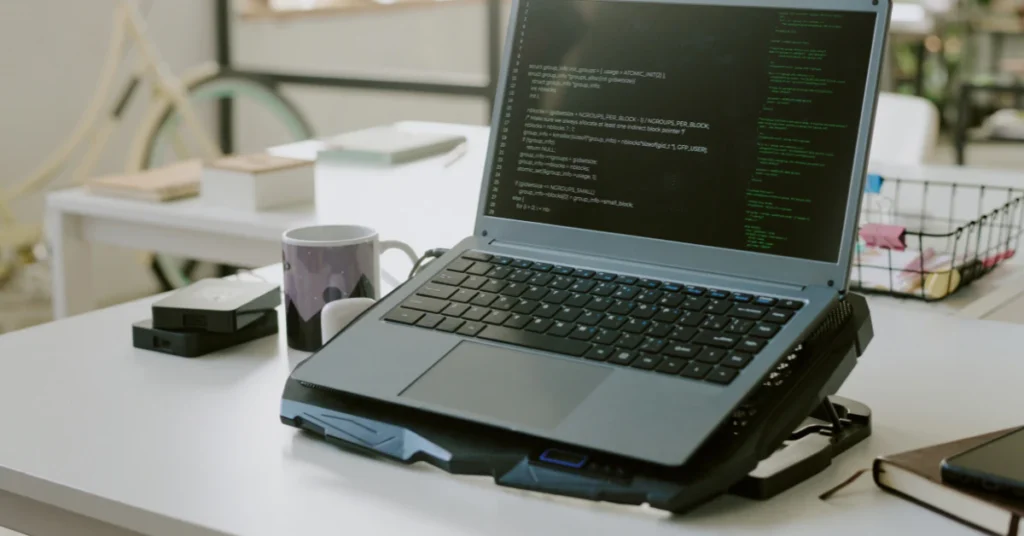
A laptop balanced on a bed, couch, pillow, or your lap might feel comfortable to you, but it’s smothering your laptop’s airflow. Soft surfaces cave in around the bottom vents and trap the hot air that’s supposed to escape, forcing the fan to spin harder just to keep up. Move your laptop to a hard desk or table, or set it on a cooling pad or stand, and you’ll often hear the fan drop speed within seconds.
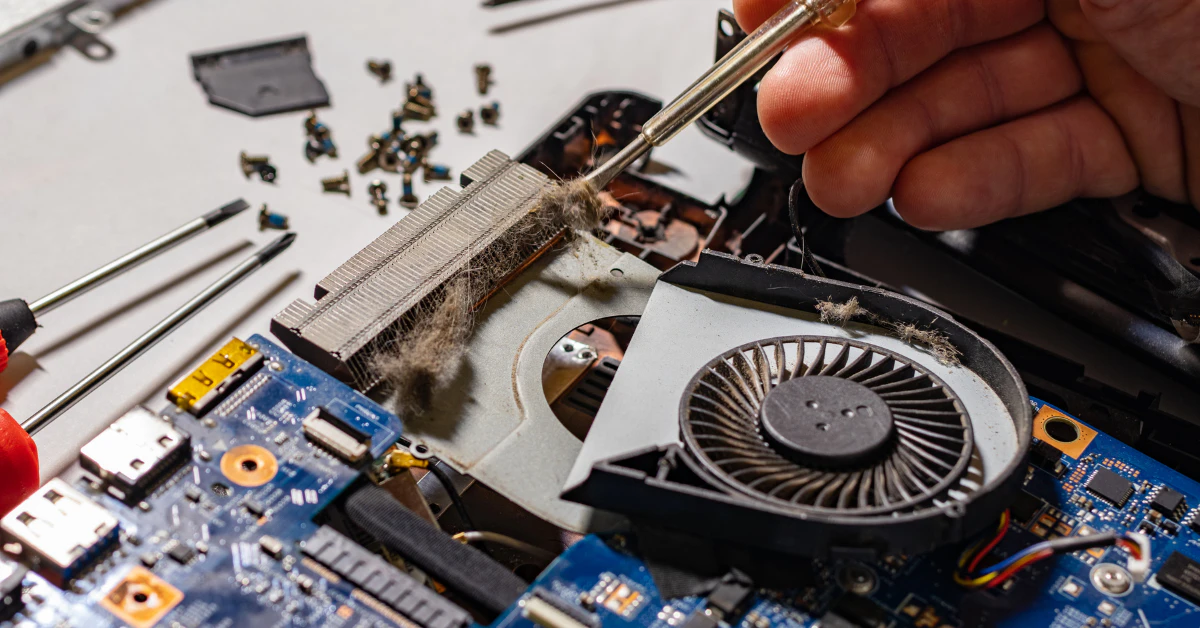
Once airflow is sorted out, dust is usually the next culprit. HP recommends cleaning out your laptop’s vents every 2 to 3 months using compressed air. Dust clogs the fan blades and the narrow fins where hot air exits, so a clean path makes a real difference.
Never use a household vacuum cleaner on your laptop. It might seem like an easy shortcut, but vacuums build up static electricity, and that static can fry sensitive components inside your laptop. Stick to compressed air instead.
Before you spray, read this. One mistake trips up a lot of people cleaning their own laptop, and most guides never mention it. If you blast compressed air straight into a vent without holding the fan blades still, the air can spin them far faster than they’re built to run. According to repeated reports from tech forums like Tom’s Guide and TechPowerUp, and repair site iFixit, this can wear out the fan’s bearings or even create a reverse electrical current that stresses the motor. Either way, you can turn a dusty fan into a broken one in seconds.
Here’s how to clean it safely:
- Power off your laptop completely and unplug it.
- Hold the fan blades still with your finger, or gently wedge a wooden toothpick between them through the vent opening.
- Spray compressed air in short bursts, a second or two at a time, rather than one long blast.
- Move around the vent opening to loosen dust from different angles, keeping the blades held steady the whole time.
This small extra step takes a few more seconds, but it’s the difference between a quieter laptop and an unexpected trip to the repair shop.
What If Cleaning Didn’t Work? BIOS, Thermal Paste & Fan Replacement
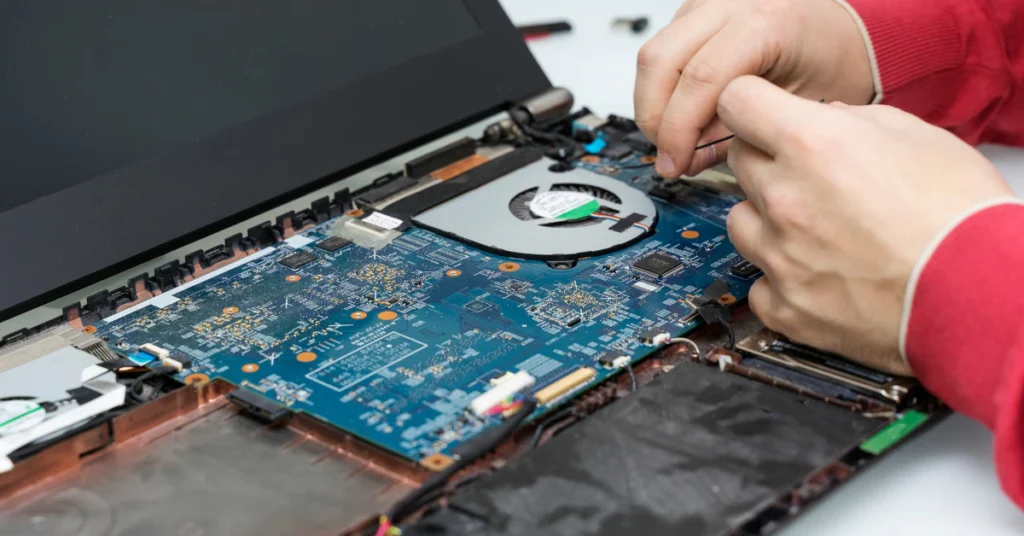
If you’ve already tried the software fixes and cleaned out the dust, but the fan is still loud, the issue is probably deeper. Here’s what to check next, moving from simplest to most involved.
Update your BIOS and chipset drivers. Outdated firmware or a glitched thermal sensor can trick your laptop into thinking it’s hotter than it really is, so the fan runs at full speed even when the laptop feels cool to the touch. Check your manufacturer’s support page for the latest BIOS and driver updates.
One thing to know before you go looking: the key you press to enter BIOS setup varies by brand and even by model. It’s commonly F2, F10, Delete, or Esc, so don’t assume one key works for every laptop. Check your manufacturer’s support page to find the right one for your exact model instead of guessing.
Consider dried-out thermal paste if your laptop is older. Thermal paste is the material between your processor and its heatsink that helps carry heat away. HP notes that this paste typically dries out and loses effectiveness after 2 to 3 years, and laptops with higher-power chips like Intel 13th Gen or AMD Ryzen 7000-series processors tend to feel this sooner. If your laptop fits that profile and runs hot even when idle, old paste could be the reason.
Before you open your laptop or touch anything inside, keep these three things in mind:
- Check your warranty first. Opening the bottom panel can void an active manufacturer warranty, so confirm your coverage before doing any internal work.
- Protect against static electricity. Power off the laptop, unplug the AC adapter, and disconnect the internal battery if you can. Use an anti-static wrist strap or gloves if you have them, or at minimum touch an unpainted metal surface to ground yourself before touching anything inside.
- Only use electronics-safe isopropyl alcohol. If you’re cleaning off old thermal paste, use isopropyl alcohol that’s 90 percent or higher on a lint-free cloth, and only work on a laptop that is fully powered off and unplugged.
If the rattling won’t go away, it’s likely the fan itself. Compressed air and cleaning can’t fix a worn-out bearing or a loose internal wire resting against the fan housing. If you’ve cleaned everything and it still grinds or rattles, the fan has likely reached the end of its life. The good news is that replacing a laptop fan is usually a straightforward and relatively affordable repair compared to other hardware fixes.
Frequently Asked Questions
How do I get my laptop to stop making fan noises?
Switch your Windows 11 Power Mode to Balanced or Best Power Efficiency (Settings, then System, then Power & Battery, then Power Mode), close heavy apps in Task Manager, use a hard flat surface, clean vents while holding the fan blades still, and set your Dell or HP thermal app to Quiet mode.
How do I stop my laptop from sounding like a jet engine?
This usually means heavy workload plus blocked airflow. Close CPU-heavy apps, elevate the laptop off soft surfaces, use a cooling pad, and lower your power mode. If it stays loud at idle, check for dust buildup or an outdated BIOS.
Why is my laptop fan blowing so loud?
The fan speeds up to remove heat. Common triggers include heavy tasks, blocked vents, dust buildup, a power mode set to Best Performance, or a faulty thermal sensor sending false high-temperature readings to the system.
Is it safe to use a laptop if the fan is making noise?
Yes, if it’s a smooth whir or hum tied to your workload that settles when the task ends. It’s a concern if you hear grinding, rattling, or buzzing, or if the base feels uncomfortably hot to the touch.
Is it bad for a laptop fan to run constantly?
Not inherently. Laptop fans are built for continuous duty, and hardware forum discussions consistently put fan lifespans around 30,000 to 100,000-plus hours of use, though manufacturers don’t publish an official MTBF spec for consumer laptop fans. Constant running is usually a sign of heat worth investigating, not damage happening on its own.
Why does my laptop fan make a noise like it’s hitting something?
This usually points to a mechanical issue. A loose internal wire or cable can brush against the spinning blade, clumped dust can throw a blade off balance, or the fan bearings themselves may be wearing out.
How to repair a laptop fan making noise?
Start with compressed air while holding the blades still, or carefully open the laptop with anti-static precautions for a deeper clean. If grinding or rattling continues afterward, the fan itself likely needs to be replaced.
My computer fan is rattling. How can I fix it?
Debris or a loose wire usually causes a rattle that changes with fan speed. A steady-pitch rattle at any speed often means worn bearings. If cleaning doesn’t stop it, replacing the fan is the lasting fix.
How to make fans quieter on PC?
Lower your power mode, clean case filters and fans regularly, check your BIOS for a Silent fan curve preset, use your manufacturer’s thermal app if available, and make sure the case has good overall ventilation.
Conclusion
A loud laptop fan feels alarming, but it rarely means your laptop is failing. Most of the time, it’s just working harder than it needs to because of heat, dust, or a power setting that’s set too high. Start with the easy fixes first: lower your power mode, close background apps, and get the laptop off soft surfaces. If that’s not enough, clean the vents carefully, check your BIOS and thermal paste, and use your manufacturer’s quiet mode. Grinding or rattling that won’t go away usually just means the fan needs replacing, which is a simple fix on its own. Work through the steps in order, and your laptop should go back to running quietly in the background where it belongs.