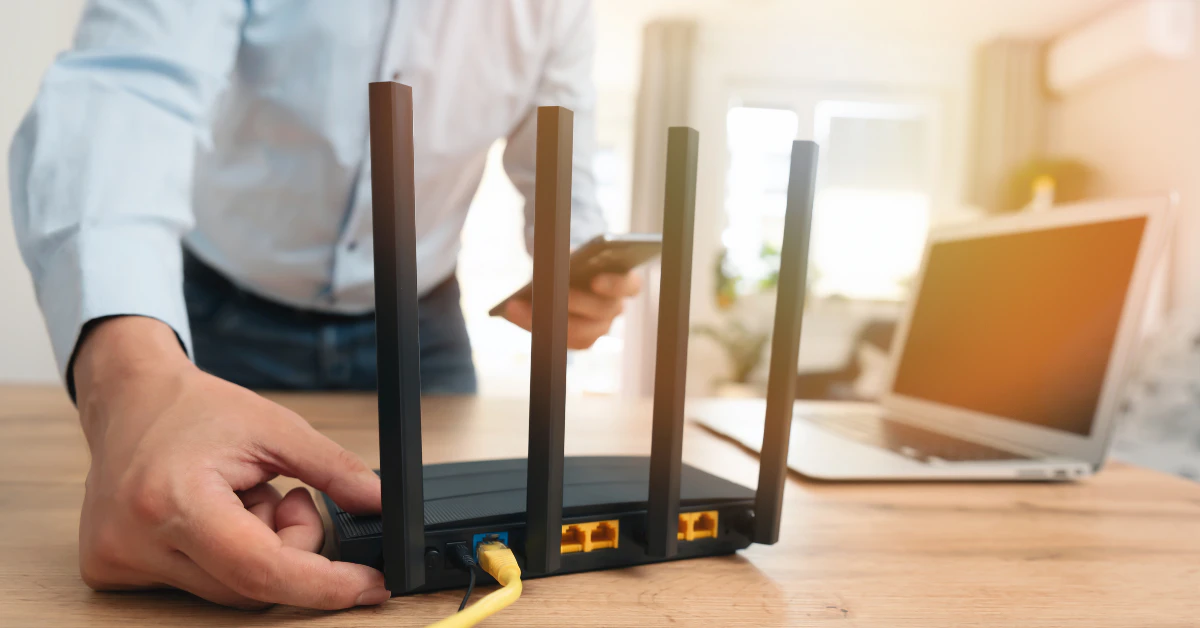
Weak Wi-Fi is almost never one single problem. It is usually a mix of small things stacking up until your video call freezes or your show buffers.
Move your router out of closets and cabinets into an open, central spot. Switch it to channel 1, 6, or 11 to dodge neighbor interference. Take your phone out of a thick or metal case. Check if your router is over 5 years old, since old firmware causes real slowdowns. These four fixes solve most weak signal problems without spending a dime.
Some of these take 30 seconds. Others take a few minutes. None require buying anything new, though we will cover when a mesh system or extender actually makes sense later on.
Below, we break down every fix by cause, so you can jump straight to the one matching your problem.
Why Walls Kill Your Connection (And What to Do About It)

Distance is not the real enemy here. What is between your router and your phone matters just as much, maybe more.
Every wall, door, or window a Wi-Fi signal passes through eats away at its strength. Engineers call this loss “attenuation,” but you can just think of it as static soaking into a wall like water into a sponge. The thicker or denser the material, the more signal gets soaked up before it reaches you.
Here is how much strength different materials steal, measured in decibels (dB). The bigger the number, the more signal you lose:
| Material | Signal Loss |
| Wood door | -3 dB |
| Non-tinted glass | -3 dB |
| Drywall or sheetrock | -3 dB |
| Metal rack | -6 dB |
| Elevator or metal obstacle | -10 dB |
| Brick, concrete, concrete blocks | -12 dB |
| Foundation wall | -15 dB |
For context, a thick 8-inch reinforced concrete wall (common in basements and older homes) can cause up to 55 dB of loss on its own. That is enough to turn a strong signal into almost nothing.
So if you are trying to figure out how to boost wifi signal through walls, start by counting what is actually in the way. One drywall panel barely matters. Two brick walls and a concrete floor will crush your signal no matter how good your router is.
This is also why the same router can feel great in the living room and useless in the basement. It is not your imagination. It is math.
How to Boost Your Signal for Free (No Hardware Required)
You don’t need to spend anything to see a real improvement. Two free fixes make the biggest difference, and one of them sounds too weird to be true, but it is not.
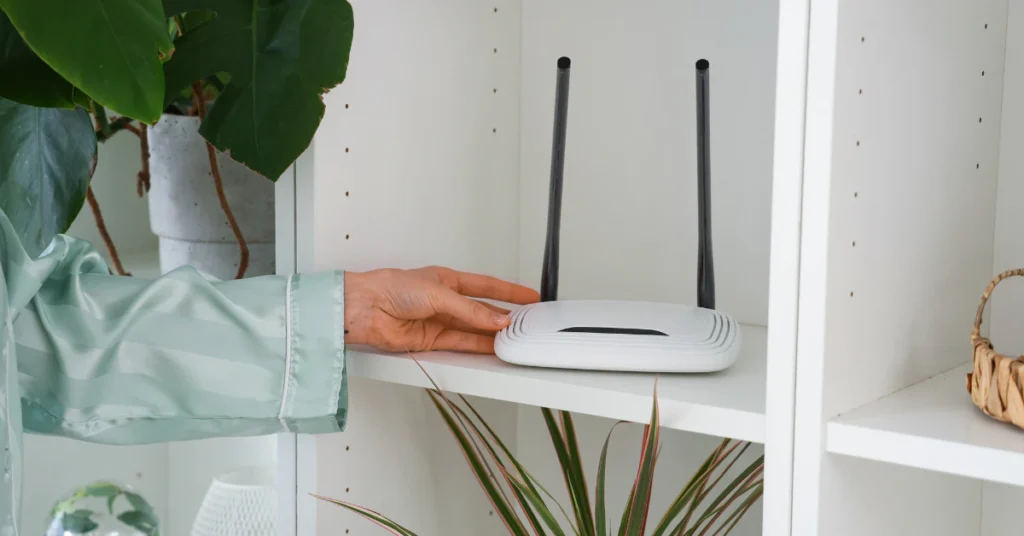
Move your router out of hiding. If your router lives inside a cabinet, closet, or media console, that is likely hurting you more than any wall. Place it in an open, central spot in your home, and lift it up onto a shelf or table rather than the floor. Signal spreads outward like ripples, so a central, elevated spot lets it reach every room more evenly instead of blasting into one direction first.
Try a shaped foil reflector. This is the real answer for anyone searching how to boost wifi signal without booster. Researchers at Dartmouth College tested this by building a specially shaped reflector, made from a 3D-printed form or careful cardboard, then wrapping it in aluminum foil and placing it behind the router’s antennas. The results were not small. Their tests showed signal boosts of up to 55.1% in the direction the reflector faced. A separate independent test using just cardboard and foil measured gains up to 166% at longer distances and through walls.
Here is the catch, and it matters. This is not magic, it is physics. The foil does not create new signal power. It redirects existing signal in one direction, which means it gets noticeably weaker behind the reflector. So this trick only works if you shape the foil properly and aim it toward the room you actually need, like a bedroom or home office. Randomly wrapping foil around your router with no shape will not do much of anything.
The Hidden Router Settings: Channels and Firmware
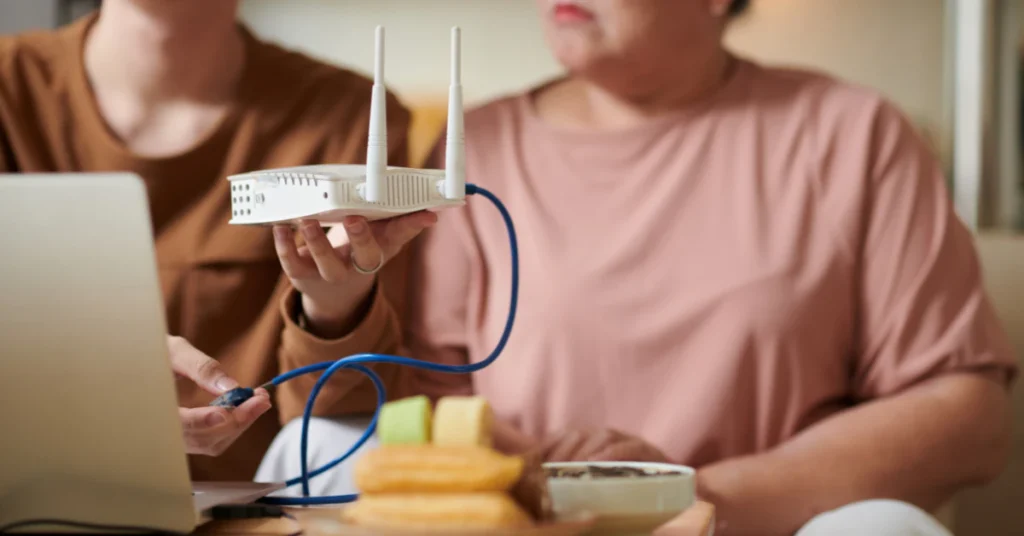
Some of the biggest fixes are hiding inside settings you have probably never opened. This matters most if you live in an apartment building or a crowded neighborhood.
Fix channel overlap. The 2.4GHz band is split into channels, like lanes on a highway. But those lanes overlap each other, which causes interference when your neighbors’ routers are nearby. Only three channels don’t overlap with each other at all: channel 1, channel 6, and channel 11. If your router is set to a different channel, or set to “auto” in a crowded building, you may be fighting for space with several other networks at once. Switching manually to channel 1, 6, or 11 can clear up a surprising amount of static, especially in apartments where dozens of routers are packed close together.
Check your router’s age. If your router is more than 3 to 5 years old, age itself might be the problem. Manufacturers eventually stop releasing firmware updates for older models, which means the router misses out on performance fixes and security patches. An old, unsupported router can quietly get slower and less stable over time, even if nothing else in your home has changed.
One important note: every router brand handles these settings differently. TP-Link, Netgear, Eero, and others each have their own app or web dashboard, and the exact menu names will not match. To make either change, log into your router’s app, or type its IP address (often something like 192.168.1.1) into a web browser, and look for “Wireless Settings” or “Channel” from there.
How to Improve Wi-Fi Signal on Your Phone (iPhone & Android)
Sometimes your router is fine, but your phone still struggles. If your laptop connects perfectly in the same spot where your phone constantly drops or slows down, the problem is likely the phone itself, not your home network.
Start with your case. If you use a metal or metal-lined phone case, it can physically block your phone’s Wi-Fi antenna from picking up signal properly. Try removing the case for a few minutes and see if your connection improves. If it does, switching to a plastic or silicone case can permanently fix the issue.
iPhone fixes
If you’re focused on how to improve wifi signal on iphone, try these in order:
- Update iOS. Go to Settings, then General, then Software Update. Outdated software can cause random Wi-Fi bugs that a simple update clears up.
- Turn off Wi-Fi Assist. This feature quietly switches you to cellular data when Wi-Fi seems weak, which can make your connection feel unstable even when it isn’t. Go to Settings, then Cellular, and scroll down to turn it off.
- Turn off Low Data Mode. This setting can delay background activity on your Wi-Fi network. In Settings, tap Wi-Fi, then the “i” icon next to your network, and switch it off.
- Reset Network Settings. If nothing else works, go to Settings, then General, then Transfer or Reset iPhone, then Reset Network Settings. This clears out old, possibly corrupted network data and forces a fresh connection.
Android fixes
For anyone searching how to boost wifi signal on android phone or how to increase wifi speed in mobile, look for a setting sometimes called “Smart Network Switch” or “Adaptive Wi-Fi.” This feature automatically switches your phone to the strongest available connection when your current one gets weak.
Here’s the catch: this setting is named differently depending on your phone’s brand. Samsung tends to call it Smart Network Switch, while other manufacturers may call it Adaptive Wi-Fi or something similar entirely. Since Android skins vary so much, the best move is to search your phone’s Wi-Fi settings menu directly for terms like “network switch” or “adaptive,” since the exact path will not be the same on every device.
Upgrading Your Network: Do Boosters Actually Work?
If the free fixes above still leave you with dead zones, it might be time to spend money. But not all hardware fixes are equal, and one popular option is weaker than most people realize.
Extenders have a real downside. A cheap Wi-Fi extender works by catching your router’s signal and rebroadcasting it. The problem is that this rebroadcasting process often cuts your speed roughly in half, since the extender has to receive and resend the same data instead of just passing it along. Many extenders also create a second network name, so your phone doesn’t automatically switch as you walk through the house. You end up manually connecting to “HomeWiFi” in one room and “HomeWiFi_EXT” in another, which gets old fast.
Mesh systems fix both problems at once. Instead of one router struggling to cover a whole house, a mesh system uses several small nodes placed around your home, all sharing a single network name. As you walk from room to room, your phone or laptop automatically hands off to whichever node has the strongest signal, without you noticing or doing anything. This is the real answer if you’re looking for how to get strong wifi signal in every room, especially in larger homes where one router simply cannot reach every corner well. Mesh systems don’t suffer the same speed penalty that basic extenders do, since the nodes are built to work together rather than just repeat a signal.
Consider Wi-Fi 6E if you’re already upgrading. Newer routers that support Wi-Fi 6E add access to the 6GHz band, which is far less crowded than the older 2.4GHz and 5GHz bands most homes compete over. Fewer devices are using it right now, which means less interference and more consistent speeds, particularly in homes packed with smart devices, laptops, and phones all fighting for bandwidth at once.
You can check current router and mesh options on the Wi-Fi Alliance’s official site for certified Wi-Fi 6E devices.
The “Full Signal but No Internet” Trap
Sometimes the problem has nothing to do with your signal at all, even though it looks exactly like a signal problem.
Full Wi-Fi bars only tell you that the bridge between your phone and your router is working. They say nothing about what happens after that. Think of your Wi-Fi as a bridge connecting you to your router, and your internet service as the highway that continues on from there. You can have a perfectly solid bridge and still go nowhere if the highway past it is shut down.
That’s exactly what happens with a DNS failure, an ISP outage, or an unpaid bill. In each case, your phone connects to the router just fine, showing full bars, while the actual path to the internet beyond your home is blocked somewhere else entirely.
This is why restarting your router sometimes does nothing. If your bridge was never the issue, rebuilding it won’t reopen a closed highway. Before assuming your Wi-Fi setup is broken, try loading a website using cellular data instead. If that also fails, or if neighbors report the same issue, the problem is likely with your provider, not your home network.
Frequently Asked Questions
Do Wi-Fi signal boosters actually work?
Yes, but with a catch. Extenders often cut speed roughly in half because they have to rebroadcast the signal, and some create a separate network you must switch to manually. Mesh systems avoid this problem entirely by using one network name and handing devices off to the strongest node automatically.
Why is my wifi signal weaker?
Distance combined with obstacles is almost always the cause. Materials like drywall only cost you about -3 dB, but brick and concrete can cost -12 dB, and thick reinforced concrete can cost up to 55 dB. The more walls and floors in the way, the weaker your signal gets.
What blocks the wifi signal the most?
Metal and dense concrete are the worst offenders. Metal reflects signal instead of letting it pass through, and thick concrete walls can block the vast majority of your signal on their own.
Why isn’t my WiFi reaching the entire house?
Your router is likely off to one side of the home rather than centered, forcing signal to travel further and through more walls to reach distant rooms. Central, elevated placement almost always helps.
How to make Wi-Fi signal stronger throughout house?
Combine free fixes first: central placement, non-overlapping channels, and removing obstructions. If your home is still too large for one router, a mesh system covers every room more evenly than a single extender.
Why do I have full Wi-Fi but no signal?
This usually means your Wi-Fi connection to the router is fine, but the router’s connection to your internet provider is not. ISP outages, DNS failures, and unpaid bills can all cause this exact symptom.
Conclusion
Most weak Wi-Fi problems come down to a handful of fixable causes: where your router sits, what’s physically in the way, which channel it’s using, and how old the hardware actually is. Try the free fixes first, since moving your router, switching channels, and shaping a foil reflector cost nothing and solve a surprising number of dead zones on their own. If your home is simply too big for one router to handle, a mesh system is the more honest upgrade over a basic extender. And if your bars are full but nothing loads, stop blaming your Wi-Fi and check your internet connection instead.