
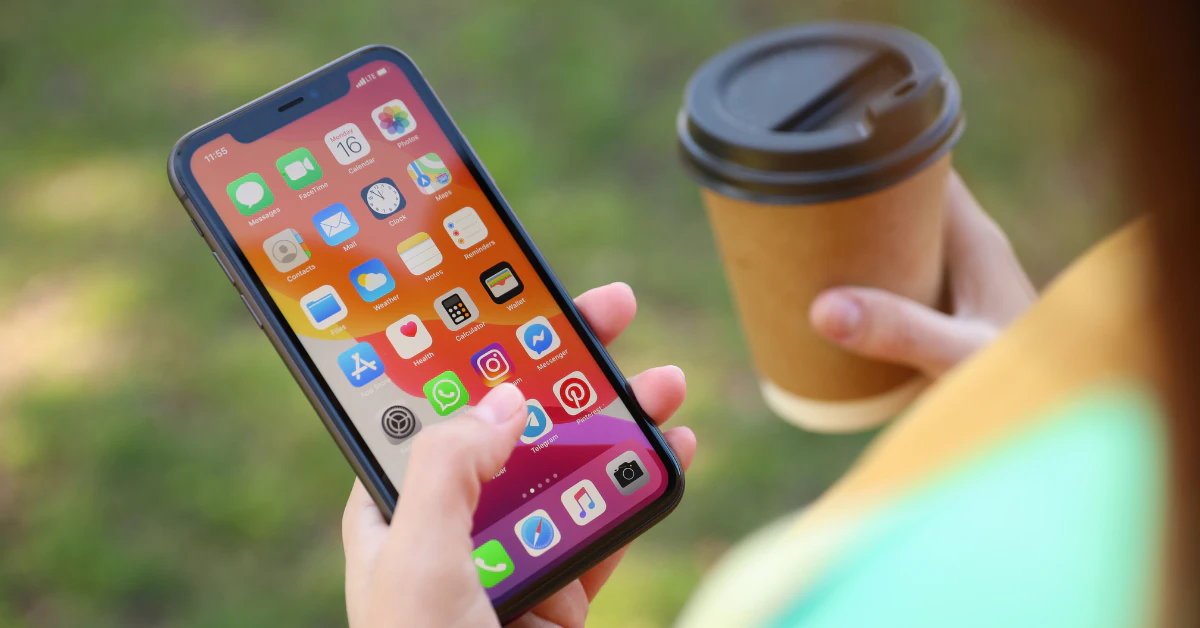
Need to delete an app right now? Here is the fastest way:
- Touch and hold the app icon until a menu pops up.
- Tap Remove App.
- Tap Delete App, then confirm by tapping Delete.
That’s it. The app and its data are gone from your phone.
These steps work the same way on almost every iPhone made in the last several years, including the iPhone 14 and iPhone 15. Whether you’re on an older model or the newest one, this basic method has not changed.
The Standard Method (And Knowing the Difference Between Delete vs. Remove)

There is an older way to delete apps that still works today. It’s called jiggle mode.
Press and hold any empty spot on your Home Screen. All your app icons will start to shake. You will see a small minus sign in the corner of each app. Tap the minus sign on the app you want gone, then confirm.
This method works the same way whether you have an older iPhone 13 or a brand new iPhone 17. It has not changed in years.
Here is where most people get confused. When you try to remove an app, iPhone gives you a few different choices. They are not all the same thing.
| Option | What It Does |
| Remove from Home Screen | Hides the app icon, but keeps the app and its data in your App Library |
| Offload App | Deletes the app itself to save space, but keeps your data and settings so you can pick up where you left off if you reinstall it |
| Delete App | Removes the app and all of its data completely from your phone |
If your goal is to free up space, offloading is a smart middle ground. If you want the app fully gone, choose Delete App.
How to Delete Apps via iPhone Settings (Storage)
If your phone feels full and slow, this is the method to use. It lets you see exactly what is taking up space before you delete anything.
Here is how:
- Open Settings.
- Tap General.
- Tap iPhone Storage.
- Wait a moment while your phone loads a list of every app, sorted by size.
- Tap the app you want to remove.
- Tap Delete App, then confirm.
This screen is more useful than just scrolling your Home Screen. It shows you the exact size of each app in megabytes or gigabytes. You might be surprised which apps are quietly eating up the most room.
This method is especially helpful if you have dozens of apps spread across many Home Screen pages. Instead of hunting for one small icon, you can see everything in one sorted list and go straight to the biggest space hogs.
If storage space is your main problem, start here instead of digging through your Home Screen one page at a time.
The Fastest New Methods (Spotlight Search and App Store)

Got the newest software update? You now have two shortcuts that skip the Home Screen entirely.
Delete an app from Spotlight (iOS 26 and later only)
This trick is new, so it only works if your phone is running iOS 26 or later. If you have an older version, you won’t see this option yet.
- On your Home Screen, swipe down to open Spotlight search.
- Type the name of the app you want gone.
- Press and hold the app in the search results.
- Tap Delete App, then confirm.
This is a huge time saver if you have many Home Screen pages and don’t want to hunt for one tiny icon.
Delete an app from the App Store
This second trick works no matter which iOS version you have. Most people never notice it.
- Open the App Store.
- Tap your profile picture in the top right corner.
- Scroll to the Updated Recently section.
- Swipe left on any app in that list.
- Tap Delete.
This works well if you just updated a bunch of apps and realize one of them is no longer worth keeping. No need to leave the App Store at all.
Why Won’t My iPhone Let Me Delete Apps? (The Fix)
You press and hold the app. You wait for the delete option. But all you get is “Remove from Home Screen.” No matter how many times you try, the Delete button never shows up.
This is one of the most common complaints iPhone users have, and it almost always comes down to one setting.
Fix it in Screen Time
- Open Settings.
- Tap Screen Time.
- Tap Content & Privacy Restrictions.
- Tap iTunes & App Store Purchases.
- Find Deleting Apps and set it to Allow.
Once this is switched on, go back and try deleting the app again. For most people, this solves the problem completely.
If that doesn’t work, check for MDM
If you already have Deleting Apps set to Allow and you still can’t delete anything, there may be a bigger reason. If your iPhone belongs to a school or an employer, it might be managed through something called MDM, which stands for Mobile Device Management.
MDM lets an organization control settings on your phone, including whether you’re allowed to delete apps at all. If this is the case, no setting on your end will fix it. You will need to contact your school’s IT department or your company’s tech support team to ask them to lift the restriction.
You can read more about how these restrictions work on Apple’s own support page.
How to Delete Hidden Apps

Sometimes an app isn’t gone. It’s just hiding.
Since iOS 18, iPhones let you lock certain apps away in a secret spot called the Hidden folder. If you or someone else on your phone turned this on, the app won’t show up on your Home Screen. It won’t even show up in a normal search. That can make it feel like the app vanished into thin air.
Here is how to find it and delete it for good:
- From your Home Screen, swipe left until you reach the App Library.
- Scroll all the way down to the bottom of the screen.
- Tap the Hidden folder.
- Confirm with Face ID, Touch ID, or your passcode.
- Once inside, press and hold the app you want to remove.
- Tap Delete App, then confirm.
This feature is meant to keep certain apps private, so Apple locks the folder behind your biometric login. There is no way around this step. You need to unlock it before you can touch anything inside.
If you were sure you had an app installed but couldn’t find it anywhere, this hidden folder is very often the answer.
Crucial Warning: Deleting an App Doesn’t Cancel Its Subscription
Here is a mistake that costs real money. Deleting an app does not cancel any subscription tied to it.
You might delete a fitness app, a game, or a streaming service thinking you’re done with it. But if you signed up for a paid subscription inside that app, Apple keeps billing you. The charges do not stop just because the app is gone from your phone.
This is one of the most common complaints iPhone users report. They delete an app, forget about it, and then get surprised by a charge weeks later.
Before you delete an app with a subscription, cancel the subscription first. Here’s how:
- Open Settings.
- Tap your name at the top.
- Tap Subscriptions.
- Find the app and tap Cancel Subscription.
Do this step first. Then delete the app. That order matters if you want to avoid an unwanted charge next month.
Which Built-In Apple Apps Can You Actually Delete?
You are not stuck with every app Apple installs. Many of the built-in ones can go too.
Apps like Calculator, Maps, Stocks, Calendar, Mail, Notes, and Weather can all be deleted the same way you delete any other app. Just touch and hold, then tap Delete App.
One thing to know: deleting a built-in app also wipes any related settings and data tied to it. This can sometimes affect other features on your phone, so only delete ones you truly never use.
Here’s a caveat most people don’t know about. If you live in the European Union or Japan, Apple allows you to delete apps that are locked down everywhere else in the world. This includes core apps like Messages, App Store, Camera, Photos, and Safari.
Everywhere outside those regions, those specific apps cannot be removed. So if a guide online mentions deleting Safari or Messages, it likely only applies to EU or Japan users, not the rest of the US.
Frequently Asked Questions
How do I completely uninstall or delete an app on my iPhone?
There is no difference between the two in the Apple world. Deleting and uninstalling mean the exact same thing on iPhone. Touch and hold the app, tap Remove App, then tap Delete App to confirm. That single action fully removes the app and its data.
Is deleting an app on iPhone the same as uninstalling it?
Yes. Apple simply calls the action “delete” instead of “uninstall,” but they do the exact same thing.
What apps should you delete from your iPhone?
There’s no official list from Apple telling you which apps to remove. A smart approach is to start with apps you haven’t opened in months, duplicate tools that do the same job, and anything tied to a subscription you forgot you had.
Is it better to delete or uninstall an app?
Since they’re the same action, there’s no real choice to make here. Just decide if you want the app fully gone (delete) or if you’d rather keep its data for later (offload).
One last tip: if you ever change your mind, you can redownload any app you’ve already purchased for free from the App Store.
Conclusion
Deleting an app on iPhone is simple once you know where to look. Whether you use the classic touch-and-hold method, jump into Settings for a clearer view of storage, or use the newer Spotlight and App Store shortcuts, you now have every route covered. Just remember to cancel any subscriptions first, check Screen Time if something won’t delete, and look in the Hidden folder if an app seems to have vanished. With these steps, your Home Screen stays clean and your phone stays free of clutter you don’t need.